Twproject integrates with Microsoft Entra ID (formerly Azure Active Directory) through the OAuth2 login built into the product: users click a button, authenticate on Microsoft and Twproject recognizes them by their email address. No extra modules to install and no Tomcat changes: everything is configured from the Twproject administration page and from an app registration on Entra ID.
This guide applies both to on-premise installations and to dedicated cloud instances. Where the steps differ, it says so.
The mechanism is a standard authorization code flow. Twproject redirects the user to the Microsoft authorization endpoint, receives the code on its callback, exchanges it for an access token and queries the Microsoft Graph userinfo endpoint. From the result it reads the email and looks for the Twproject operator who has that email as login name.
What is not included in this version, to avoid wrong expectations:
- SAML 2.0: not supported. The integration is OAuth2/OpenID Connect.
- Automatic provisioning: a user who does not already exist in Twproject is not created at the first login.
- Group and role synchronization: areas, roles and assignments are still managed inside Twproject.
- Silent SSO: at every login Twproject asks Microsoft to authenticate the user again (
prompt=login).
Prerequisites
These conditions must be true, otherwise the login button does not appear or the login fails.
| Prerequisite | What to check | Where |
|---|---|---|
| Enterprise license | OAuth2 login is available only with an Enterprise level license. With a lower license the tab does not appear and the login does not start. | Admin → License |
| Dedicated installation | It works on on-premise installations and on dedicated cloud instances. It is not available on the shared cloud. | Contract |
| HTTPS and public URL | Twproject must be reachable over https and its public URL must be configured correctly: it is used to build the redirect URI, which Microsoft accepts only over https. On dedicated cloud instances Twproject has already configured it. | Admin → Global settings → Server config (on-premise only) |
| Login name = company email | Everyone who will sign in with Entra ID must have as login name exactly the email address returned by Microsoft (usually the primary email). The comparison is case-insensitive. | Person editor → Security/Login |
| Administrator with email | Whoever performs the configuration must already have their Entra email as login name: the activation test checks that the user returned by Microsoft is that same person, enabled and administrator. | Person editor → Security/Login |
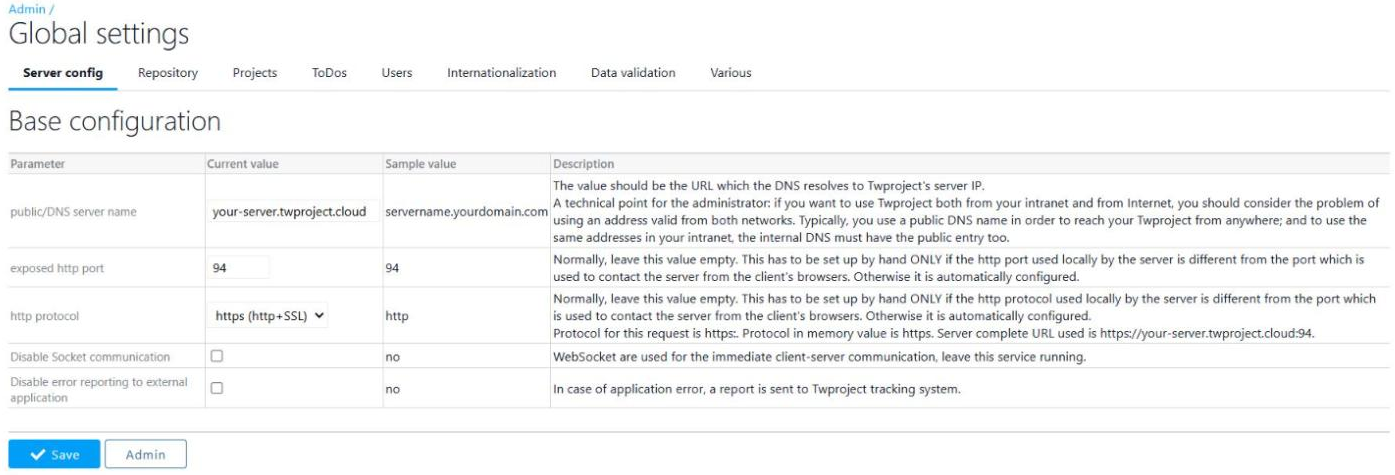
Public URL (on-premise only). In Admin → Global settings → Server config the fields public/DNS server name, exposed http port and http protocol must match the address users reach Twproject with. The description line shows the full URL the server will use.
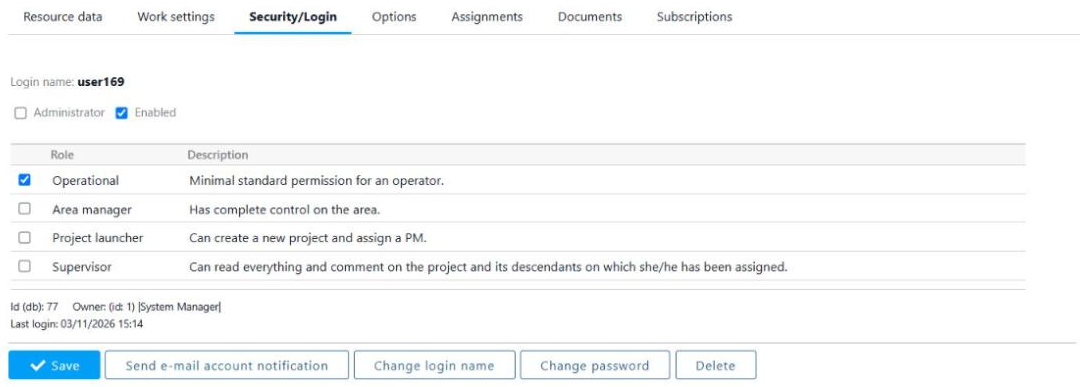
Login name. Each person’s login name is shown and changed in the Security/Login tab of the resource, with the Change login name button. In the example below the login name is user169 and should be replaced with the user’s email. For many users, the REST API on the person object is more convenient.
A user without a mailbox in Entra ID has no email field in the Microsoft response, and their login fails even if the login name is correct.
Step 1: register Twproject on Entra ID
On the Microsoft Entra portal (Entra ID → App registrations → New registration) the tenant administrator creates a registration with these values.
| Field | Value |
|---|---|
| Name | Twproject (or a name of your choice) |
| Supported account types | Accounts in this organizational directory only (single tenant) |
| Platform | Web |
| Redirect URI | The redirect URI shown in the Twproject OAUTH2 tab (see step 2), copied exactly. It looks like https://<host>/<context>/applications/teamwork/security/oauth/oauthLogin.jsp on-premise and https://<your-instance>.twproject.cloud/applications/teamwork/security/oauth/oauthLogin.jsp on the cloud. |
| Certificates & secrets | A new client secret. Copy its value right away: it cannot be read later |
| API permissions | Microsoft Graph, delegated: openid, profile, email. Grant admin consent for the tenant |
From the Overview page of the registration, three values must be passed to whoever configures Twproject:
- Application (client) ID: becomes the Client ID.
- Directory (tenant) ID: goes into the authorization and token endpoints.
- Client secret value: becomes the Client secret.
The secret expires, after 24 months at most. When it expires nobody can sign in any more: put it on the calendar, regenerate it in advance and enter it again in Twproject.
Admin consent prevents every user from seeing the Microsoft consent screen at the first login. Tenant policies (MFA, conditional access) apply as usual, because authentication happens on Microsoft’s pages.
Step 2: configure Twproject
Everything is done from Admin → Security and Authentication, by an administrator whose login name is already their Entra email.
2.1 Show the OAUTH2 tab
The OAUTH2 auth. tab stays hidden until the CUSTOM_FEATURE_OAUTH_ENABLED customization is enabled. It is in Admin → Advanced customization, row Enable OAUTH2: tick the box, the value is saved automatically.

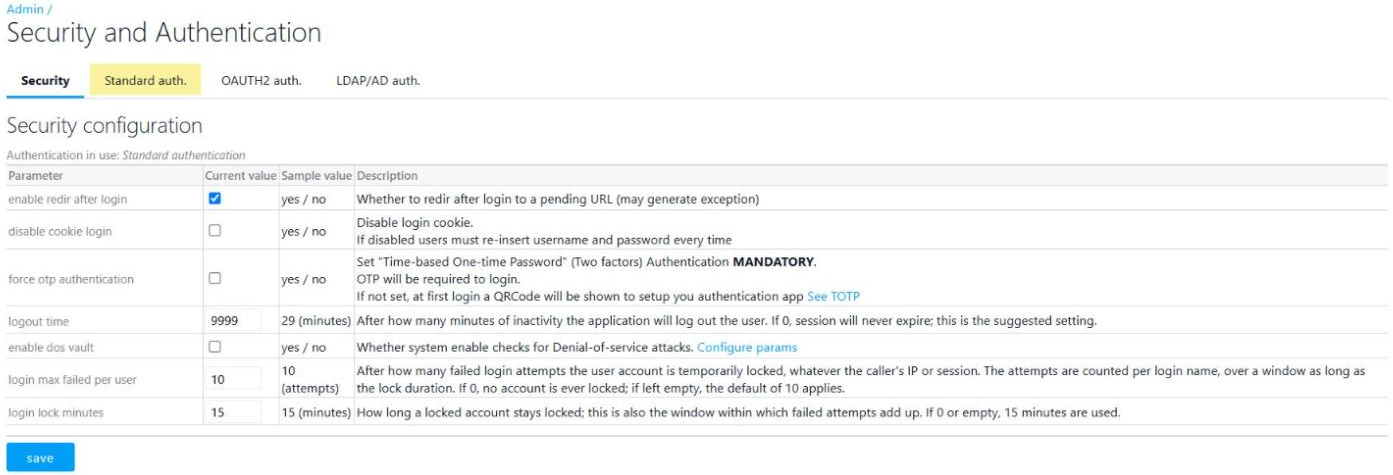
Back in Security and Authentication, the OAUTH2 auth. tab appears next to Standard auth. and LDAP/AD auth.
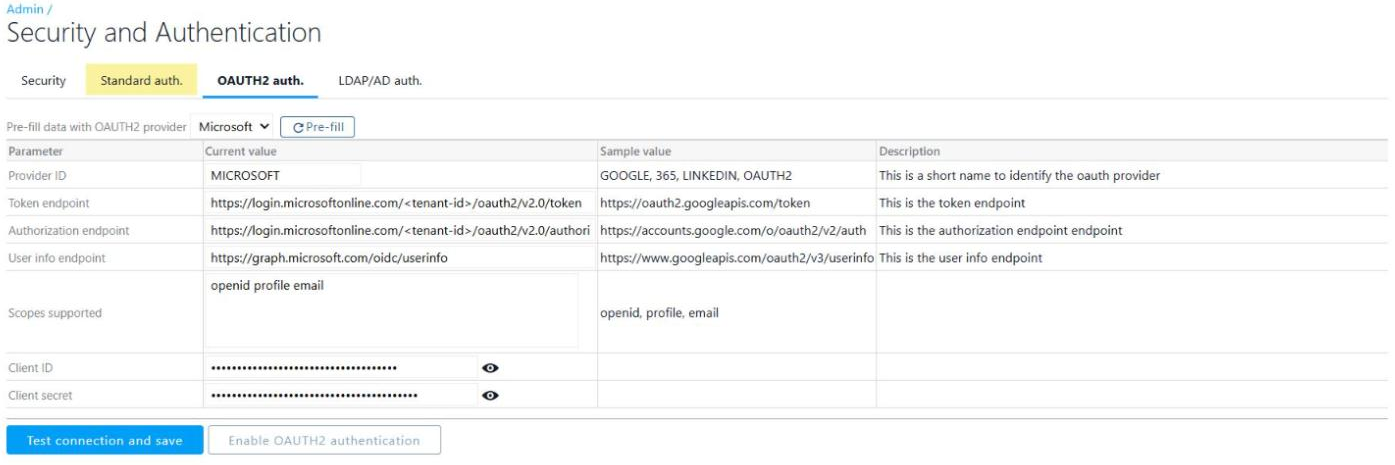
2.2 Fill in the OAUTH2 auth. tab
The Pre-fill data with OAUTH2 provider combo with the Microsoft entry fills in the endpoints from the Microsoft discovery document. It uses the common tenant: replace it with your directory ID, so that Microsoft accepts only your tenant. If the fields stay empty after the pre-fill, fill them in by hand with the values below. On-premise this happens when the Twproject Content Security Policy blocks the call to login.microsoftonline.com.
| Field | Value to enter |
|---|---|
| Provider ID | MICROSOFT (free label: it appears on the login button, “Authenticate with Microsoft”) |
| Token endpoint | https://login.microsoftonline.com/<tenant-id>/oauth2/v2.0/token |
| Authorization endpoint | https://login.microsoftonline.com/<tenant-id>/oauth2/v2.0/authorize |
| User info endpoint | https://graph.microsoft.com/oidc/userinfo |
| Scopes supported | openid profile email (remove offline_access if the pre-fill adds it: it is not needed) |
| Client ID | Application (client) ID of the registration |
| Client secret | Client secret value |
At the bottom of the tab Twproject prints the exact redirect URI to register on Entra ID and reminds you that OAuth login uses the email as login name. The red warning is shown until the logged-in administrator has an email as login name.

2.3 Test and enable
- Click Test connection and save. A Microsoft popup opens: the administrator signs in with their Entra account.
- Twproject checks that the email returned by Microsoft matches the logged-in administrator, and that they are enabled and administrator. If the check passes, the parameters are saved and a confirmation message appears. If it fails, the message says which email Microsoft returned: that is the value that must match the login name.
- Only after a successful test is Enable OAUTH2 authentication unlocked. Clicking it switches the authentication type to OAuth2, immediately and without a restart.
From then on the login page shows only the Microsoft button. Before point 3, every user must have their login name aligned with their email (see prerequisites).
How login changes for users
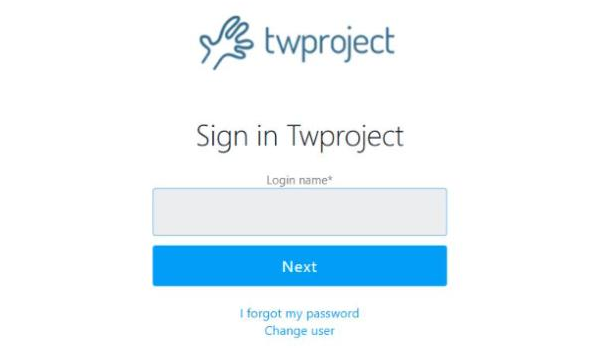
Today the login page asks for login name and password in two steps.
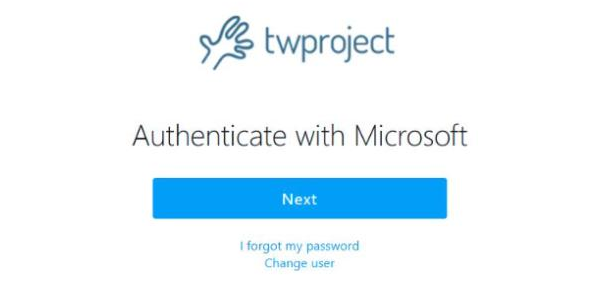
With OAuth2 enabled the page shows only the invitation to authenticate with the provider and a button. Username and password disappear for everyone.
What happens when the user clicks:
- A popup opens with the Microsoft sign-in page. A company popup blocker in the browser prevents the login: popups must be allowed for the Twproject address.
- Microsoft always asks for credentials, because Twproject sends
prompt=login. Tenant policies (MFA, conditional access) apply at every login. - Microsoft sends the browser back to the Twproject callback, which exchanges the code for a token and reads the user’s email.
- Twproject looks for the operator with that login name. If it exists and is enabled, the user is in; if it does not exist, the user sees a generic login error.
- If Twproject has mandatory OTP, the OTP step stays and is asked after the Microsoft authentication.
The Twproject “remember me” cookie, if enabled in the security settings, keeps working: users who have it do not go through Microsoft every time they open the browser, until the cookie expires.
REST APIs with an APIKey and MCP access do not change: they do not go through the login page.
Limits and things to know
- All or nothing. With OAuth2 enabled nobody signs in with username and password. External consultants, suppliers or technical accounts without an Entra identity can no longer access the interface. List them before enabling it.
- No provisioning. Users must be created in Twproject before they can sign in. A new hire in Entra does not appear automatically.
- No groups. Areas, roles and assignments are still managed in Twproject. Entra group membership is not read.
- Disable in two places. Disabling a person in Entra blocks their login, but the Twproject operator stays active (counts against licenses, receives notifications). Disable them in Twproject too.
- Secret expiry. When the client secret expires, login stops for everyone. Set a reminder before the expiry date.
- Popup. The flow uses a popup window. The browser must allow it for the Twproject address.
- No silent SSO. Microsoft asks for credentials at every login. The Twproject “remember me” cookie softens this.
- Secret in clear text (on-premise). The client secret is stored in clear text in the
commons/settings/global.propertiesfile of the installation. Restrict the file permissions to the Tomcat user.
Emergency recovery
If the configuration breaks (expired secret, deleted registration, administrator without email) and nobody can sign in any more, it cannot be fixed from the interface.
- On-premise: in the
commons/settings/global.propertiesfile setAUTHENTICATION_TYPE=ENABLE_STANDARD_AUTHENTICATIONand restart Tomcat. Username and password work again. - Cloud: write to Twproject support with the address of your instance. We restore standard authentication with username and password, then you can fix the configuration and enable OAuth2 again.