

Every IT team deals with two streams of work. On one side there are projects, with phases, deadlines and estimates; on the other a constant stream of tickets: bugs reported by customers, requests from colleagues, small changes, urgent checks. The first can be planned, the second arrives without warning and, if it isn’t channelled, disrupts the first.
With artificial intelligence this second stream hasn’t shrunk: code is produced faster and released more often, and every release brings its own queue of reports, fixes and requests for clarification. Besides understanding how to make the team’s #real capacity visible, an IT project manager needs to set up a solid process for collecting, sorting and planning tickets, so that they fit into the work plan without turning it upside down.
CONTENT
The critical issues in ticket management
The typical problems are always the same:
- requests come in through too many channels (email, chat, phone, a word in the corridor) and some get lost;
- nobody knows for sure who is handling them, or how far along they are;
- everything seems urgent, so nothing really is;
- the time spent on tickets doesn’t show up in people’s workload, and projects slip for no apparent reason.
Below we’ll look at three simple processes to integrate tickets into the workflow, without support activities blocking the development projects underway.
1. A single entry point for all requests
The first step is deciding where tickets land. In Twproject every ticket is a ToDo, a micro-activity that always lives inside a project or a phase. For an internal help desk, the simplest solution is to create a dedicated project, for example “IT Support” or “Product X Support”, which collects all requests in one place.
Requests can reach that project in several ways:
- from inside Twproject, creating the ToDo from the dashboard or from the list of projects and their sub-phases: a title and a description are enough, but you can also add attachments, mentions, comments and so on;
- from the personal agenda: while planning their working week, users can assign themselves urgent tasks, including the support requests they’ve received, and set aside a defined time slot for them;
- from an email: with management by email, the administrator links a mailbox to the project; every message becomes a ToDo, the body of the email becomes the description and attachments are added automatically;
- from the project’s public page: by enabling the request option, customers and colleagues who don’t use Twproject can submit a request without logging in. The request comes in as an open, unassigned ToDo, and whoever sent it receives an email with a link to follow its progress.
The result is that no request is left sitting in a personal inbox or a chat: everything is tracked, searchable and has a history. Permissions are separate too: a “customer” role can have read-only access to the project and, at the same time, the right to create ToDos.

2. Classify, assign and set priorities
A ticket that has been collected but not classified is just one more line in a list. Every ToDo in Twproject carries the information needed to sort it:
- severity, which sets the order of execution: a blocking ToDo should be resolved before a critical or low one, and the list is sorted by severity by default;
- type and tags, to tell bugs, change requests, questions and security checks apart. Tags are created as needed and reused;
- status, which follows the team’s resolution flow: open, paused, in test, closed, or whatever statuses your process needs, each marked as “open” or “closed”;
- additional custom fields, for example the product module or the version in which the bug appeared.
ToDos can be sorted visually with the Twproject Kanban, which is multi-dimensional: columns can be severity, status, assignee or project phases. For a help desk, the manager opens the Kanban on the support project, sees the incoming requests not yet assigned and drags them to the right person or phase. Every change of status and assignee is recorded in the ToDo history.

To make sure nothing gets lost along the way, there are notifications: you can be alerted when a ToDo is added, updated, closed, or when it has expired and is still open. Everyone chooses their channel; instant email, periodic digest, on-screen sticky note or a simple log.
A useful detail for IT teams: when a ticket turns out to be bigger than expected, for example a “small change” that becomes a product enhancement, the ToDo can be upgraded to a project. The original ToDo is closed and a sub-project is created with its own phases and estimates, instead of remaining a ticket that keeps someone busy for weeks.
3. Integrate tickets into the workload
This is where the real game is played. A ticket that doesn’t weigh on the workload is a ticket that steals time from projects without anyone noticing.
In Twproject the link is direct. On the support project, team members have a spot assignment (see here the difference between project, spot and routine activities), designed precisely for activities that can’t be planned: even with a zero estimate, every ToDo with a “to be done on” date and an hour estimate immediately enters the person’s workload for that day. The same goes for ToDos distributed with the planner, where the manager drags them onto each assignee’s calendar: four hours planned on Monday for a ticket are four hours “booked” in Monday’s workload.
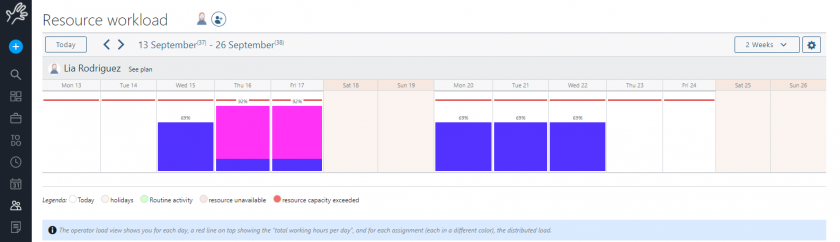
So, when you look at the workload view, tickets appear alongside project phases. If a developer’s week is taken up by urgent reports, you see it before assigning them a new phase, and you can decide with hard numbers whether to move a ticket, reassign it or postpone the delivery.
Time reporting stays simple too: whoever works on a ToDo logs hours directly on the task, and the worklog flows into the project linked to the original ticket. After a few months you know exactly how much support costs for each product area and how many hours are really left for development. A ToDo list filter also isolates those where the work done has exceeded the estimate: they are often the first signs of a technical problem to be tackled at its root.
Since release 7.3.001 connected Twproject to AI assistants, part of this work can also be done in natural language: asking which high-priority ToDos are still open on a project, getting a summary of last month’s comments on your assigned tickets, or creating a new ToDo and assigning it to a colleague, if the administrator has enabled write access for that user.
Tickets and projects on the same platform
The advantage of managing tickets in Twproject rather than in a separate tool is that everything else is already connected:
- #resource management, because ToDos weigh on people’s workload together with project phases;
- #project cost control, because the hours spent on a customer’s tickets end up in that customer’s project and affect the margin;
- #project planning on the Gantt chart, where you can see how many ToDos are open and closed for each phase, and the ToDo list opens next to the chart;
- #integration with other systems, via API and webhooks, for those who already collect reports in a CRM or a customer portal.
A real case: Advance
Advance is an Australian company that has been developing software, managing networks and implementing IT tools for its customers for over 25 years. Its old system was built for ticketing and worked well for that; but when the company started taking on complex development projects, it was no longer enough to plan the work, and project managers spent half the day shuffling ToDos around a Kanban board.
With Twproject, Advance manages both projects and internal tickets on the same platform: some project managers work with detailed Gantt charts, others with the Kanban view, and customer and project information is stored in one place instead of being scattered across emails, chats and notes. The Managing Director describes how they use tags on tickets:
“I can create a ticket and tag it ‘ask the customer’. Software developers love using tags. Reducing the time spent searching for data means the team can focus on the activities that deliver results for customers.”

Want to see your help desk working in Twproject?
Every IT team has its own flow of requests: who sends them, how they’re classified, who decides the priorities. That’s why the quickest way to find out whether Twproject is right for you is to see it applied to your own situation.
Book a demo with a dedicated tutor, an expert in IT project management. In one session we’ll build your support project together: a mailbox or public page to collect tickets, tailored statuses and types, a Kanban for sorting and spot assignments, until you see tickets appear in your team’s workload alongside your projects.
👉 Book your free demo with an IT industry expert tutor now
Prefer to start on your own? Try Twproject free for 15 days, no credit card required.