We’re delighted to introduce you to one of the most eagerly awaited and practical new features we’ve added to Twproject recently: My Weekly Workspace, a feature that radically transforms the way you plan and view your working week directly in the Agenda.
If you’ve ever felt overwhelmed by your to-do list, found yourself unable to work out how much time you actually have left in a day, or reached Friday with tasks still left undone because you hadn’t planned your time properly, this new feature has been designed with you in mind.
TABLE OF CONTENT
- What is My Weekly Workspace and why does it change everything?
- Undated ToDo’s: they’ve finally found their place
- Dated ToDo’s: drag them wherever you like
- Add new ToDo’s directly from your Agenda
- Work Plans: show your commitment to a project
- ‘Mark as busy’: your Agenda speaks to your colleagues
- Everything reflects on the resource’s workload
- Try My Weekly Workspace now!
What is My Weekly Workspace and why does it change everything?
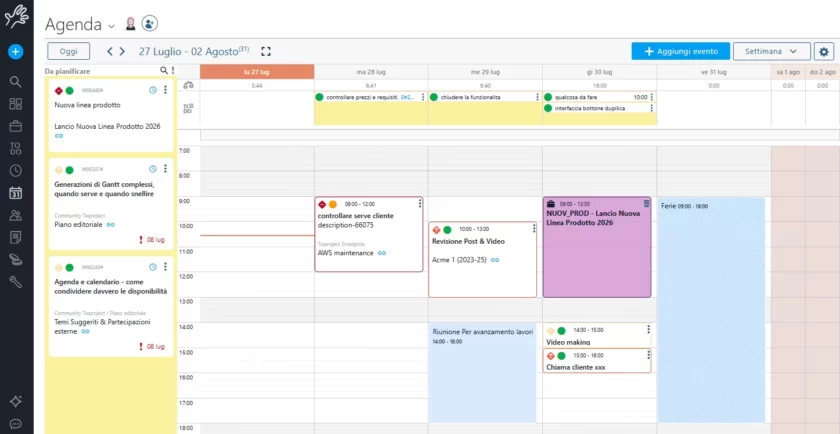
My Weekly Workspace is the new planning tool integrated into Twproject’s Weekly Agenda that allows you to build a comprehensive, accurate and realistic picture of your working week.
This isn’t just a calendar: it’s a space where to-dos, project work and scheduled events coexist seamlessly, allowing you to organise your tasks on a day-by-day basis with specific durations. At last, you can see exactly what you have planned, how much time you still have available, and where the heaviest workload lies. It’s no coincidence that Twproject is rated as one of the best tools for managing ToDo’s and tasks.
To enable this feature, go to: Weekly Agenda → Options (cog icon) → Show planned activities.
From that moment on, your work commitments for the week will no longer be a flat list: they will become a visual map spread out over time.
Undated ToDo’s: they’ve finally found their place
One of the most common problems in day-to-day task management is this: you have a list of assigned ToDo’s, but without a specific due date. They just lay there, waiting, with no clear timeframe.
With My Weekly Workspace, these ToDo’s appear in a dedicated column on the left-hand side of the Agenda. From there, you can simply drag them to the day and time of your choice, and assign a duration as well.
The result is that you’ll avoid forgetting important tasks and therefore won’t face any nasty surprises at the end of the week. By planning this way, each ToDo will have its own time slot, so you’ll know exactly when you’ll be tackling it.
Dated ToDo’s: drag them wherever you like
But there are also ToDo’s with an assigned date, and therefore organised more precisely: these appear at the top of the Calendar, positioned above the corresponding day. From there, you can:
- Drag them to a specific time of day
- Adjust their size to increase or decrease the estimated duration
- Reschedule them for another day if your priorities change
This flexibility allows you to adjust your workload in real time, without having to leave the calendar or access other sections. The working week adapts to you, not the other way round.
Add new ToDo’s directly from your Agenda
This new feature means you no longer have to jump from one section to another to set up new tasks. In fact, your ToDo’s now integrate seamlessly with all the other events in your working week, so you can add new personal ToDo’s directly from the Agenda, as follows:
- Drag the time frame required for the task directly onto the Agenda, then select the ToDo tab from the window.
- Next, enter all the mandatory and optional details that, as always, make up the ToDo’s in Twproject (title, description, priority, project, tags, etc.).
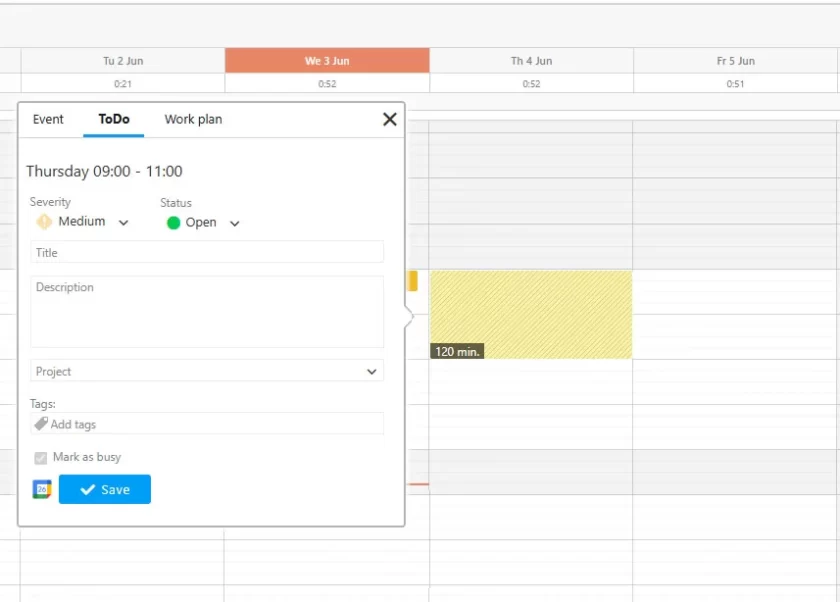
This quick and easy way of adding items is the ideal solution for those moments when, whilst you’re planning your week, you realise you need to add an activity you’d forgotten. With just a few clicks, it’s already in the right place.
Work Plans: show your commitment to a project
Sometimes it’s not about a specific task, but about the time you’ll devote to a particular project: a session of focused work, a block of hours set aside for reviewing a deliverable, or a morning spent working on a complex assignment.
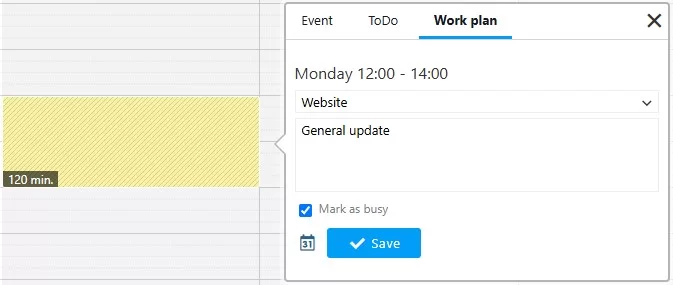
That’s why we’ve introduced Work Plans: blocks that you can add to your Agenda to indicate your commitment to a project, even if it isn’t linked to a specific ToDo.
Work Plans help you to:
- Protect your time from interruptions and overlaps
- Let others know that you are focused on a specific task during that time slot
- Track how much time you have spent on each project over the course of the week
Work Plans can also be added quickly to the Calendar in the same way as ToDo’s: position the cursor, drag to select the duration, add a description, and you’re done!
‘Mark as busy’: your Agenda speaks to your colleagues
For both ToDo’s and Work Plans, there is a very handy option: ‘Mark as busy’.
By enabling this feature, that time slot will appear as booked in the Agenda even when it is viewed by other colleagues or your manager. This will help you avoid unintentional meeting clashes and requests for availability at the wrong times.
And there’s more: if you link your ToDo or Work Plan to an external calendar (such as Google Calendar or Outlook), the event will be automatically exported to that calendar and the resource will be marked as busy by default, without the need for any further action.
Two-way synchronisation with external calendars, which was first introduced in version 7.2, is now even more closely integrated with weekly planning.
Everything reflects on the resource’s workload
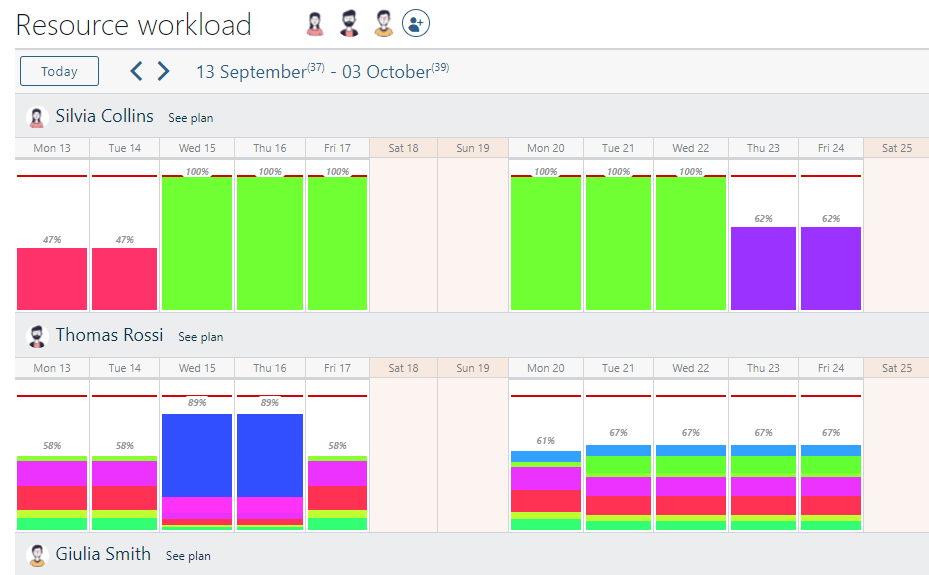
Any activity you plan in My Weekly Workspace — whether it’s a ToDo, a work plan or a scheduled appointment — is automatically reflected in the resource’s workload.
This means that the team manager always has a realistic and up-to-date picture of how busy each person is. The real benefit is that, rather than relying on rough estimates or having to collate data from multiple sources, information flows seamlessly throughout the entire platform.
For project managers, this means more balanced planning, with the ability to distribute the workload more effectively and prevent situations of overload before they become a problem.
Try My Weekly Workspace now!
As always, this release is free for all Twproject users. Cloud users will receive the update in the coming weeks.
If you’d like to explore all the technical details of this and previous releases, please visit the changelog page.
And if you’re new to Twproject and want to find out just how much it can simplify the management of your projects and your team, start a free trial today, with assistance from our support team included.