

It’s official: Microsoft Project Online has announced that it is being discontinued; it will cease to exist by September 2026. The news is reported on the company’s website and leaves project managers who have relied on this PMO software until now with many questions.
The question arises as to whether to switch to other solutions, try installing Project locally (though not all companies can manage this) or consider Microsoft Planner.
If you’re facing this dilemma, we’re here to help. In this article, we’ll find out whether Planner really does replace Project Online, and we’ll compare it with Twproject to see which is the best option for online project management.
CONTENT
- What’s new for those looking for cloud-based project management software
- What Planner does (and what it doesn’t)
- 1. Project task management
- 2. Project cost management
- 3. Project timesheets
- 4. Reporting
- A comparison with Twproject: what extra does it offer businesses
- 1. An advanced Gantt chart with complex dependencies
- 2. Efficient project cost control
- 3. Comprehensive resource and timesheet management
- 4. Reporting to summarise and share
- In conclusion: a final note
What’s new for those looking for cloud-based project management software
Let’s consider a specific scenario in which a company is unable to use on-premises PMO software (neither installed on PCs nor on its own servers).
The reasons for this can vary widely, ranging from a lack of IT infrastructure and server management skills, to the need to scale up quickly (as is often the case with innovative start-ups), to the need to collaborate with external partners and remote teams.
In all these cases, it is much more cost-effective to opt for a cloud-based solution for project management.
And so the obvious choice seems to be the new version of Microsoft Planner, which is presented as the natural successor to MS Project Online. But is that really the case?
Let’s take a quick look at its main features and the tools it offers for online project management.
What Planner does (and what it doesn’t)
Let’s take a look at the key aspects of online project management and see how they are supported in Microsoft Planner.

1. Project task management
Planner is a tool designed to organise and assign tasks, whilst keeping track of deadlines. It also allows you to view work plans and offers collaboration tools.
In the context of project task management:
- it includes Kanban and calendar views
- it features a “lightweight” timeline
- it can be integrated with Microsoft 365 and Teams
What it does not offer in terms of task or activity management:
The main limitation of task management in Planner, compared to MS Project, is that it is not possible to formally link one task to another. This is because, in Planner, there is no distinction between project activities and To Do’s. Whilst the latter are micro-tasks and daily tasks to be carried out, project activities are the phases into which the work is divided and should therefore be able to be sequential or dependent on one another.
The fact that tasks in Planner cannot be linked means that you cannot:
- block the start of a task automatically
- calculate the critical path
- recalculate the dates automatically
Although the premium version does include a project timeline, this cannot be compared to a fully-fledged native Gantt chart, since Planner was not designed as a dedicated project scheduling tool.
2. Project cost management
Unfortunately, there isn’t much to say here: Planner is an operational tool, not a financial control tool for managing actual costs or project budgets.
This means that any “cost” fields for activities can be manually added custom fields, but they are not automatically aggregated to provide comprehensive cost management.
With Planner, you can therefore:
- enter amounts in the activity description
- attach Excel files
- use manual workarounds
What it doesn’t offer for project cost management:
Planner, in both its basic version and its Business/Premium versions, is not suitable for project cost control, as it does not offer built-in tools for:
- enter monetary values for costs, budgets or estimates
- calculate total costs or variances from the budget automatically
- generate financial reports or analyses of costs
3. Project timesheets
Let’s now touch on a sore point: Microsoft Planner is a piece of software designed to track activities, not to record the actual time spent on tasks or generate structured timesheets.
In fact, in Planner you can view multiple projects side by side using the “portfolio” view to monitor their status and progress, but there is no timesheet system for tracking hours worked.
If you need a multi-project timesheet linked to Planner tasks, the main options are:
1. Integration with third-party time-tracking tools, including apps that link to Planner and allow you to log hours spent on tasks and generate timesheets.
2. Use another Microsoft product with timesheet functionality, such as Dynamics 365, which, however, lacks the task management features found in Planner.
What Planner cannot do natively:
As we have seen, there is no ideal solution for those who want to manage time tracking in an integrated way. In fact, when using Planner, you cannot:
- enter hours worked on tasks and projects
- generate timesheets for the team
- have integrated timesheets for multiple projects
- manage a structured portfolio, including work times and costs
In a nutshell, Planner does not natively support multi-project timesheets, so if you need to link timesheets to projects, you will need to use integrations or external tools.
4. Reporting
As for the reporting features, Planner offers a main dashboard which displays:
- the status of tasks (broken down into: not started, in progress, completed, overdue)
- the breakdown by team member (showing the number of tasks assigned to each person and their workload)
- the breakdown by bucket (i.e. all tasks categorised by phase/project (e.g. “to do”, “in progress”, “testing”)
This worksheet can be exported to an Excel file and used as a basis for reporting. It is therefore an export of raw data, which will then need to be processed further to generate a proper report.
What Planner does not do in terms of reporting:
Planner does not allow you to generate pre-formatted reports in PDF or Excel with a structured layout, nor does it provide charts that are ready to be shared.
Planner also does not natively offer:
- Detailed historical reports
- Performance analysis over time
- Multi-project reporting
A comparison with Twproject: what extra does it offer businesses
An analysis of these four areas of project management reveals that Planner is not a genuine alternative to Microsoft Project Online.
Its basic features do not meet the actual needs of structured companies with multiple departments and advanced management requirements.
Twproject, on the other hand, is software natively designed to meet the project management needs of teams and managers.
Here is what it offers, by contrast, for the management and monitoring of projects across the four identified sectors.
1. An advanced Gantt chart with complex dependencies
The online Gantt chart from Twproject is quite likely the best Gantt chart currently available.
It features:
- comprehensive management of dependencies between phases and sub-phases, covering all types of dependency relationships (FtS, StS, etc.) and the option to use ‘flexible’ dependencies (i.e. those that are not time-restrictive);
- simplified planning, offering the opportunity to test various time-based scenarios without fear of damaging the final structure;
- a historical record for project tracking that allows you to look back in time and reconstruct the planning status at any point, thanks to the ‘snapshot’ feature;
- an advanced critical path analysis, with automatic identification of bottlenecks;
- full integration with workload management, allowing you to view staff availability at the same time as you assign work tasks;
- a shared view of to-do lists and planned, estimated and actual costs, so you can always keep everything under control and at your fingertips;
- a system for filtering items and full exportability, enabling quick, customised sharing with managers from different areas of the project.

2. Efficient project cost control
When it comes to financial management, Twproject is every bit as good as software designed specifically for this purpose; in fact, it makes budgeting much more efficient and realistic.
In Twproject, project costs are:
- always updated in real time, as they are automatically linked to the hours recorded by employees for projects and tasks;
- broken down into planned, estimated and actual figures, not only at project level but also for individual phases;
- divided into operating and additional costs (extra expenses, expense reports, etc.)
- linked to alerts for budget overruns at every stage of the project;
- related to revenue management, so that everything is on the same platform;
- which can be linked to documentation (quotes, invoices, etc.) so that everything is stored on a single platform that also serves as a repository;
- can be grouped and filtered, ready to be exported for sharing.

3. Comprehensive resource and timesheet management
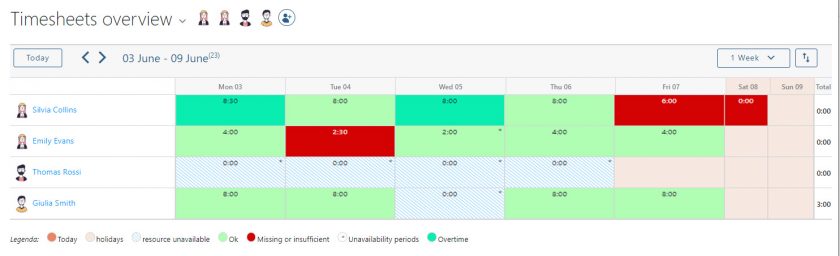
Twproject supports teams in every aspect of business management, including resource management. Specifically, its multi-project timesheets, which are generated automatically and efficiently, are:
- fillable in several ways (from the project list or directly from completed activities), including in “stopwatch” mode;
- integrated with company calendars and therefore always synchronised (for example, a scheduled departmental meeting can be automatically transferred to the participants’ timesheets);
- linked to the attendance overview feature to make it easier for those responsible for monitoring staff working hours;
- shareable in real time.
4. Reporting to summarise and share
Everything you’ve seen so far can always be exported in various formats, which makes reporting in Twproject truly efficient.
Thanks to the use of advanced filters, each report can be customised and is able to meet the needs of multiple stakeholders.
There are plenty of reporting tools in Twproject, and here we will limit ourselves to mentioning the main ones, which can be broadly categorised as follows:
- Project report: providing an overview of the project, including the WBS structure, assigned team members and their workloads, scope, timelines, etc. In addition to printing the report, you can also share a public project page with users outside the platform.
- Cost report: this consolidates all project costs into a single document, broken down by phase and including all budget items, to provide a comprehensive financial overview.
- HR reports: with a particular focus on the protection of sensitive data and in compliance with employment regulations, Twproject provides ready-to-use reports with up-to-date data on attendance and actual hours worked by staff on projects.
- Portfolio report: this provides you with an up-to-date overview of the progress of company projects as a whole, using various progress metrics (completed stages, timelines, costs relative to budget, and so on).

In conclusion: a final note
Here is a brief overview of how the most important areas of project management are handled in Planner and Twproject:
| Field | Microsoft Planner | Twproject |
|---|---|---|
| Task management | Kanban, calendar, basic timeline; no dependencies between tasks | Advanced Gantt chart, task dependencies, critical path |
| Project costs | Not natively supported (manual workarounds only) | Integrated cost control: budget and planned/estimated/actual costs |
| Timesheets | Absent; external integration needed | Integrated multi-project timesheets linked to tasks |
| Reporting | Basic dashboard, export raw data to Excel | Comprehensive, customisable reports: project, costs, resources, portfolio |
And now a final note: here’s another reason why you should seriously consider Twproject.
With Twproject, you always know who to turn to and you have the direct support and assistance of a dedicated tutor, who will guide you through the entire start-up phase and whom you can always rely on.
Twproject is a cloud-based software solution, but it also offers an on-premises version, which can be installed on company servers and is therefore even more secure.
So if you’re unsure where to migrate to following the closure of Microsoft Project Online, we can work through your migration plan together and assess the impact.
Request a demo tailored to your company’s processes and find out if Twproject is right for you.


